

Reclaiming disk space with Storage vMotion and Thin Provisioning

I’ve seen a number of posts on the VMTN forums as well as had discussions with folks regarding reclaiming disk space with Storage vMotion so I thought it made sense to do a quick write-up on how this process works.
The situation is unfortunately all too common – virtual machines are deployed and treated like a physical machine in terms of resource all0cation. In the physical world it is common to see VMs with multiple processors, lots of RAM, and at least 73GB disks (of which maybe 25GB is actually used). Folks often have a hard time letting go of that configuration, and so they’ll bring it into the virtual world. While it is easy and relatively painless to reduce CPU and memory, reducing the size of a virtual disk to reclaim some space on your VMFS partition isn’t as straightforward. Still easy, just not straightforward.
You have two solutions to the problem depending on how you want to reclaim the space:
1) Use VMware Converter to V2V the VM and resize the disk. This will reduce the size of the disk both in the guest and on the VMFS partition, but requires a brief amount of downtime to swap between the original VM and the converted VM.
2) Use Storage vMotion along with thin provisioning in vSphere to resize the disk on the VMFS partition but leave it the original size in the guest. The size of the disk will grow as data is written to the VM.
Most of the time option 2 works without a problem. But what about the case where you previously had data on the drive and deleted it and wish to reclaim the space. In that case the Storage vMotion will likely not be able to reclaim the space. Why? Because the blocks that had been previously written to the drive need to be zeroed out first.
The easiest way to do that is to use a tool like SDelete. SDelete is capable of scanning a drive and zeroing out blocks from deleted files so that they can be reclaimed as free space. Use the following command to zero out the free space:
Sdelete.exe -c c:\ <– Replace the c:\ with the appropriate drive letter.
In this example we have a VM that has a thick provisioned 25GB C: drive and nearly all of the space on disk was consumed. I deleted some old data and now show 15.7GB free inside the VM. I then ran SDelete as listed above and would like to convert the VM to thin provisioned and reclaim some space. Here is how it looks now:

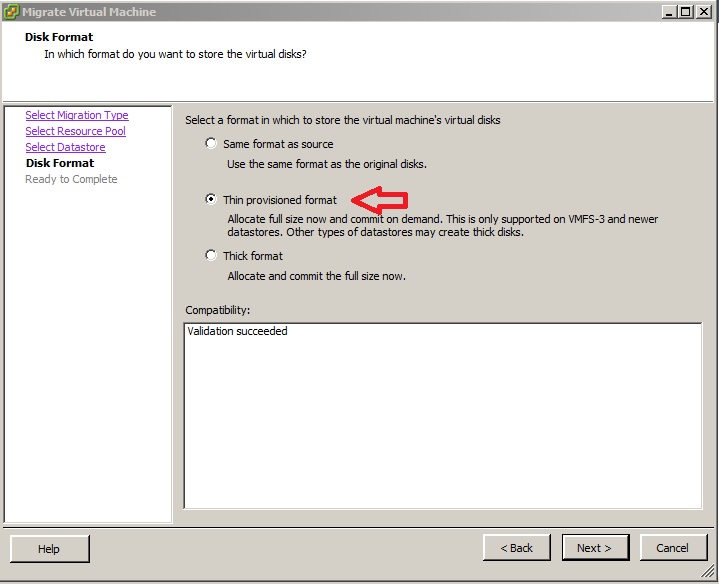
I then right click on the VM, choose Migrate, and select that I want to Change Datastore. Once you get to the Disk Format screen, remember to select the “Thin provisioned format” option as seen below:
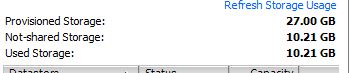
After the Storage vMotion is complete, the disk is now thin provisioned and takes up much less space:
If you’re going to use thin provisioning in vSphere, make sure you have the proper alerts setup in vCenter to notify you when space is getting tight. It’s a great way to better utilize disk space as well as reclaim space without downtime.
Or use the VMware Tools shrink option I described in this article a year ago:
http://www.yellow-bricks.com/2009/07/31/storage-vmotion-and-moving-to-a-thin-provisioned-disk/
Cool stuff though,
Hi.
In one of the virtual machine i am having 250gb of unallocated space, i intend to use this unallocated storage to another virtual machine which is running out of space.plz guide me through the process
Are you asking about shrinking an existing virtual disk to a size smaller than it currently is? This article talks about reclaiming unused space and making it available again on the datastore but doesn’t actually cover how to shrink a disk from the perspective of the guest OS.
If that’s what you’re referring to, using VMware Converter may be the best option.
VMware have screwed this bit of using vMotion to thin out disks in 4.1. It doesn’t work any more 🙁
Worked great in 4.0. Now the only way I can find is to use the VMware Converter to re-import them and change the disk size ever so slightly so it does a file-based volume copy.
Duncan – Thanks for the comment. It’s true that the Shrink option can be used for this as well as long as the disk is already thick provisioned. The Shrink option is unavailable if the disk is thin provisioned. If you’ve cleaned up space on a thin provisioned disk and want to reclaim it then you need to use SDelete.
Julian – I performed the steps in this blog post on a VM that is on a host running ESX 4.1 (not ESXi) and I was able to reclaim the space several times without issue. I haven’t heard of something changing in 4.1 to prevent this from working.
Are you using datastores formatted in different ways or the same way?
Are you referring to block sizes of the datastores? If so, then yes the block sizes were different and that is actually required in order to reclaim disk space with Storage vMotion.
Take a look at Duncan’s article on the impact of blocksize and the datamover involved on Storage vMotion for a better explanation of why datastore blocksize needs to be different for svMotion to be able to reclaim disk space.
http://www.yellow-bricks.com/2011/02/18/blocksize-impact/
Matt
Yes
That was exactly what i wanted to point out to support Julian’s statement 🙂
Yes
That’s exactly what i wanted to point out to supporrt Julian’s statement 🙂
I have a thin provisioned that I want to reclaim… What do u mean by using just sdelete ?
Hey George,
SDelete is a tool that can be used to zero out blocks of data that have previously been deleted off of a disk. If you have a virtual machine with lots of free space after deleting files, you can simply run SDelete using the syntax listed above and it will zero out the blocks.
Then you can use Storage vMotion to move your thin provisioned VM to another datastore (with a different block size – see Duncan’s post above) to reclaim that unused space and shrink the VMDK file.
Is that what you’re asking? This article is intended to provide instructions on how to do this so I’d recommend re-reading it and then posting back if you have any issues.
Matt
thanks again !
This is one of the biggest pitfalls of thin provisioned disks. Depending on how much you overcommit a datastore you run the risk of some numbskull temporarily using a lot of space, and unfortunately, reclaiming the space back isn’t easy. I’m an advocate for both thin provisioning and PROPER disk sizing :). Thin provisioning isn’t a cheap fix for bad p2v where the disk wasn’t properly resized IMHO.
Thanks for writing this article, it came in handy today.
@sixfootdad
Just tried the sdelete option and a storage vMotion on ESXi 5 with VMFS5 datastores … and it worked well! I was a bit afraid as the block sizes are all identical on newly created VMFS5 datastores, but it did the trick.
Hi
I use SDELETE and did migrate, but it didn’t work for me.
Is “different block size” necessary for reclaim unused space?
Thanks
MA,
If you’re using vSphere 4.1, then you will need to have datastores with different block sizes in order to reclaim space. Take a look at Duncan’s post below – he gives a great explanation of why and how it works.
http://www.yellow-bricks.com/2011/02/18/blocksize-impact/
Matt
Thank for your reply Matt Liebowitz
I use vSphere 5.0, and datastores with same block size.
Is “different block size” necessary for reclaim unused space?
Thanks
I believe that is correct – in order to reclaim the space you’ll need a volume with a different block size even in vSphere 5. I haven’t tested this to be sure but I believe that is still the case.
If you find that you need this, it might not hurt to keep a VMFS-3 volume around as a “swing” volume that is used just to reclaim space from VMs.
Matt
When you perform the vMotion, does the VM have to be powered off?
Nope – you don’t need to power down the VM for this too work.
Strange. My VM’s are currently thick, but if I move it to another datastore with a different block size, changing to thin, running sdelete and then moving back to original datastore, the provisioned storage and used storage are different now, but when I look at the actual VMDK, its the size of the provisioned. Shouldn’t it be the size of the used storage?
I think you want “sdelete -z”, not “sdelete -c”. Otherwise you end up writing random values to free space instead of 0s. And -z is a lot faster.
“I think you want “sdelete -z”, not “sdelete -c”. Otherwise you end up writing random values to free space instead of 0s. And -z is a lot faster.”
In SDelete v1.51 it was “-c” to zero free space, but now in 1.6 it is “-z”
Same things for writing random value, it was “-z”, now it’s “-c” ! It’s a trap :p
Thank you, I was trying to figure out why nothing changed at all for me running -c
Raxco has developed PerfectStorage to automate the zero-filling or unmapping of only the clusters that haven’t already been reclaimed, replacing SDelete and other manual, command-line tools: http://download.raxco.com/reclaim-thin-provisioned-space-coming-soon
this works fine in my environment when going thin to thin on 2 NFS Datastores
do you have a process for doing this with a linux vm?
> do you have a process for doing this with a linux vm?
Name : zerofree
Arch : x86_64
Version : 1.0.1
Release : 13.fc20
Size : 23 k
Repo : fedora/20/x86_64
Summary : Utility to force unused ext2 inodes and blocks to zero
URL : http://intgat.tigress.co.uk/rmy/uml/
License : GPL+
Description : zerofree is a utility to set unused filesystem inodes and blocks of an
: ext2 filesystem to zero. This can improve the compressibility and
: privacy of an ext2 filesystem.
:
: This tool was inspired by the ext2fs privacy (i.e. secure deletion)
: patch described in a Linux kernel mailing list thread.
:
: WARNING: The filesystem to be processed should be unmounted or mounted
: read-only. The tool tries to check this before running, but you
: should be careful.